
Drafts let you make changes in a copy of your project instead of the main version itself. Each draft has its own project chat, preview, and edits. When you’re ready, accept the draft to add its edits to your project, or delete it to discard them. If you’ve worked with version control, a draft is a branch of your project, and accepting one merges it back.
Nothing you build in a draft reaches your project until you accept it, and accepting a draft does not change your published app. Your published app changes only when you publish.
Your app’s data is the exception. A draft uses your project’s real data, so the information you add or change while testing is real. See Drafts share your app’s backend and data.
Drafts are available on all plans. Messages you send in a draft cost the same as messages in the main version of your project, and creating, updating, accepting, and deleting a draft don’t use credits. You need edit access to create, update, accept, or delete a draft.
When to use a draft
Drafts work well whenever you want to try something without changing the version everyone else is working on. For example:
- Test a redesign. Try new colors, fonts, or a different layout in a draft, and compare it with your current design before you commit to it.
- Find the words that work. Write different headlines, product descriptions, or calls to action in separate drafts, and keep the version that reads best.
- Try new visuals and motion. See how different photos, illustrations, or video change the feel of a page, or test scroll animations, a carousel, or a sticky navigation bar.
- Build a feature that needs new data. Ask for a new table or column in a draft. RShift Sites prepares the change and adds it to your project’s database when you accept the draft. See Add database tables and columns from a draft.
- Prepare changes for later. Build a sale banner or a seasonal page in a draft today, and accept it when you want to add it to your project.
- Hand changes to someone else. Let a teammate or client work in a draft, then review the changes and accept them when they’re ready.
Drafts are optional, and you can keep building exactly as you do today. Make quick changes such as typo fixes directly in your project.
How drafts work
You create a draft from your project’s main version, make changes in the draft, then accept it to keep those changes or delete it to discard them.
You’ll see six terms as you work with drafts: Main, Draft, Update, Accept, Delete, and Publish.
The table below explains each one using the same example: a bakery website where you want to try a new homepage design without changing the homepage you already have.
| Term | Description | Example |
|---|---|---|
| Main | The main version of your project, where everyone works unless they’re in a draft. It can include changes you haven’t published yet, and it’s the only version you can publish. | The current version of the bakery site, which opens when you enter the project. |
| Draft | A copy of your project where you can make changes separately. A draft has its own project chat, preview, and edits, and none of those edits reach your project until you accept the draft. | You create a draft and redesign the homepage’s hero section in the draft. The main version still shows the original hero. |
| Update | Brings newer changes from your project into a draft when you want the draft to include them. Updating is optional. If you accept without updating first, RShift Sites brings in the newer changes as part of accepting. | While your draft is open, a teammate fixes a typo in the project. Updating the draft brings in the typo fix, so the draft includes both the fix and your new hero. |
| Accept | Adds a draft’s edits to your project. After you accept it, the draft is finished and can’t be edited again. | You like the new hero, so you accept the draft. The main version of your project now includes the redesigned homepage. |
| Delete | Removes a draft and all of its edits. Your project stays unchanged. | You try another draft with a different color scheme, but you don’t like it. You delete it, and the main version of your bakery site stays as it was. |
| Publish | Makes the current version of your project live for visitors. Draft edits reach your published app only after you accept the draft and publish the project. | After accepting the new hero, you publish the project. Visitors now see the redesigned homepage. |
For readers who know version control
If you’ve used version control, drafts map to familiar concepts:
- A draft is a branch forked from your project’s history, with its own project chat.
- Update rebases the draft onto the latest version of your project. If changes overlap, RShift Sites resolves the conflicts by reworking the draft’s edits.
- Accept is a fast-forward merge. Your project’s history stays linear, and the draft’s edits are added as a named group.
- Delete discards the branch.
You don’t need to know any of this to use drafts, and these terms don’t appear in the product.
Create your first draft
Follow these steps to create a draft, make changes, compare it with your project, and decide whether to keep it.
Open the draft switcher
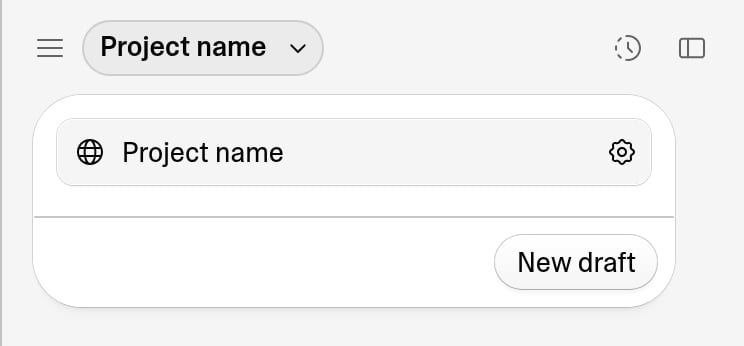
In the editor, click your project’s name at the top to open the draft switcher, where you find the project’s drafts. The top row shows your project’s name. Select the Project settings button beside it to open your project settings.
Create a draft
Click New draft. The new draft opens immediately as a copy of the main version of your project. It starts with the name Draft 1, and RShift Sites renames it based on your first prompt. To choose your own name, hover over the draft in the switcher, open its ⋮ menu, and select Rename. A name can be up to 80 characters.
Build in the draft
Work with RShift Sites in the draft’s chat as you always do. Every edit stays in the draft, and the preview shows the draft’s version of your app.
Compare with your project
Use the draft switcher to move between the main version of your project and your drafts.
Your project’s name always shows which version you’re viewing: the name on its own for the main version, or the name with the draft’s name beside it while you’re in a draft. The project chat and preview change to match it. To return to the main version, select the top row of the switcher, which shows your project’s name.
You can create as many drafts as you like and use each one to try a different idea.
Accept the draft, or delete it
When you want to keep a draft’s changes, select Accept. You’ll find it in several places while you’re in a draft: in the top right of the editor where Publish usually is, at the bottom of the draft switcher, and in the draft’s ⋮ menu. In the switcher you can also drag the draft onto the top row, which shows your project’s name, and in the draft’s chat you can ask RShift Sites to accept it.
You can accept even when your project has newer edits that the draft doesn’t have yet. RShift Sites updates the draft first, then accepts it. To update on its own instead, use the chevron next to the switcher’s Accept button, or the draft’s ⋮ menu.
Before accepting, RShift Sites shows you a one-line summary of what the draft changes, followed by the draft’s edits. Confirming adds them to your project’s unpublished changes and returns you to the main version of your project. The accepted draft moves to your project’s history. Accepting doesn’t use credits.
RShift Sites keeps that summary. It appears labeled Draft summary on the accepted change in your project’s chat, and on that change in version history.
If you don’t want to keep the draft, delete it instead.
Status indicators
When you have several drafts, the switcher shows the status of each one:
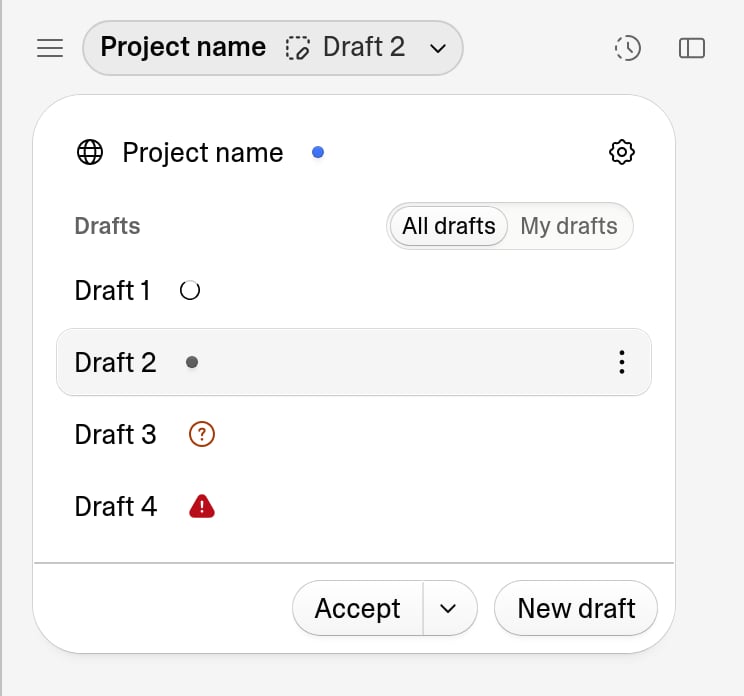
In the switcher above, RShift Sites is working in Draft 1, Draft 2 is the draft you’re viewing and has newer project edits to bring in, Draft 3 is waiting for an answer, and the last operation in Draft 4 failed. The blue dot on the top row, which shows your project’s name, means the project has changes ready to publish. The All drafts and My drafts tabs appear because a teammate created one of the drafts. See Use drafts with your team.
Hover over a row to see what its indicator means:
| Indicator | What it means |
|---|---|
| Spinning circle | RShift Sites is working in that draft. The label beside it says which operation is running, such as Updating draft or Accepting draft. |
| Gray dot, Updates available | Your project has newer edits that this draft doesn’t have yet. |
| Blue dot, New changes | The draft has edits you haven’t looked at yet. |
| Orange question mark, RShift Sites needs your input | RShift Sites asked a question in that draft and is waiting for your answer. |
| Red warning triangle, Operation failed or Update failed | The last action in that draft didn’t finish. Hover over it to see the reason, then try again. |
If a draft has no indicator, it doesn’t need your attention.
The top row, which shows your project’s name, has an indicator of its own. It tells you whether your project is published, and whether it has changes you haven’t published yet:
| Indicator | What it means |
|---|---|
| Blue dot, Changes ready to publish | Your project has changes that aren’t live yet. The label includes the number, for example 3 changes ready to publish. |
| Green dot, Everything is published | Your published app matches your project. This dot appears only when you hover over the row. |
| Gray dot, Unpublished project | You haven’t published this project yet. |
On a published project, accepting a draft turns that dot blue, because the draft’s edits are now waiting to be published. See Publish your project.
Update a draft with newer project changes
A draft starts as a copy of your project. After you create it, you or a teammate might make newer changes to the project. Those changes don’t appear in the draft automatically.
When newer changes are available, the draft’s row in the switcher shows a gray dot labeled Updates available.
Select Update to bring the newer project changes into the draft. You can update from the chevron next to the switcher’s Accept button or from the draft’s ⋮ menu. You can also ask RShift Sites to update the draft in its chat.
If the newer project changes overlap with edits in the draft, RShift Sites adjusts the draft’s edits to work with the updated version. The update can take a few minutes, and RShift Sites may add a follow-up message to the draft’s chat. The update doesn’t use credits.
You can update a draft while RShift Sites is working in the main version of your project. The draft brings in the edits your project has finished so far.
You don’t need to update a draft before accepting it. If your project has newer changes, RShift Sites updates the draft first and then accepts it. To do both steps yourself, select Accept draft after updating in the update dialog.
Delete a draft
To delete a draft, open its ⋮ menu, select Delete, and confirm. Deleting removes the draft and all of its edits. Your project stays unchanged, and the deleted draft can’t be restored.
Change the order of your drafts
The switcher lists your drafts with the most recent activity first. To set your own order, press and hold a draft for a moment, then drag it where you want it. RShift Sites remembers that order for the project in the browser you’re using.
You can’t reorder drafts while the My drafts filter is selected, because the list is showing only some of the project’s drafts. Select All drafts first.
Use drafts with your team
Everyone with edit access to the project sees the same drafts. Each draft shows who’s currently working in it. If you open a draft that someone else is using, RShift Sites suggests creating your own draft so you can work separately.
When someone else has created a draft in the project, the switcher’s Drafts heading shows two tabs: All drafts and My drafts. Select My drafts to narrow the list to the drafts you created. In a project where you’re the only person who has created a draft, the tabs don’t appear. The same tabs appear in the drafts list on your phone.
When someone accepts a draft, its changes are added to the project for everyone. Any other open drafts then show the gray Updates available dot until you update them.
If several drafts are accepted around the same time, RShift Sites processes them one at a time. When more than one draft is waiting, an Accepting drafts card appears above the project chat and shows the order. You can remove a waiting draft or drag drafts to change the order.
Drafts share your app’s backend and data
A draft keeps your changes to the app separate, but it doesn’t have a backend of its own. Every draft uses your project’s built-in backend (Cloud): the same database, the same files, and the same settings.
If you add, edit, or delete information while testing in a draft, those changes are real, just as they are when you test your project directly. Deleting the draft doesn’t undo them.
Backend work you ask for in a draft applies to your project in the same way, apart from the changes listed below. When an action is harder to undo, RShift Sites explains it in the draft’s chat first and asks you to confirm.
Backend changes you make in the main version
A change to how that shared backend is configured reaches your published app immediately, so RShift Sites makes these changes only in the main version of your project:
- Backend functions. You can edit a backend function’s code in a draft, but RShift Sites deploys it only from the main version. The change takes effect after you accept the draft.
- Sign-in methods, including social login providers such as Google and Apple.
- Secrets, the values your app uses to reach other services.
- File storage settings, such as whether a storage bucket is public.
- Enabling AI features for your app. See AI features for your app.
- Payments, including enabling payments and creating products and prices, whether you use the built-in payments or your own Stripe account. See Add payments to your app.
- Email sending, including your email domain, email templates, and enabling or disabling emails from your app. See Send branded emails from your own domain.
- Enabling the built-in backend (Cloud), if your project doesn’t have it yet.
If you ask for one of these in a draft, RShift Sites tells you to make the change in the main version instead, and continues with the rest of your request. Switch to the main version, make the change there, then update your draft to bring it in.
Add database tables and columns from a draft
Your app keeps its information in a database, organized into tables. A table of reviews, for example, has a column for the rating, one for the comment, and one for the product being reviewed.
Every draft uses the same database as your project, so RShift Sites doesn’t add a table or a column while you work in a draft. It prepares the change and makes it when you accept the draft:
- You ask for it in the draft’s chat. For example, “Add a reviews table with a rating, a comment, and the product it belongs to.”
- RShift Sites prepares the change and builds the pages that use it. The table doesn’t exist yet, so any page that reads or saves reviews shows an error in the draft’s preview. That error is expected, and it disappears when you accept the draft.
- You accept the draft. RShift Sites adds the table to your project’s database and describes what it added in your project’s main chat.
This works for additions: new tables, new columns, and new rules about who can read or change the information. RShift Sites doesn’t remove or rename an existing table or column from a draft, or change the kind of information a column stores. If you ask for one of those changes, RShift Sites reaches the same result by adding to your database instead, for example by adding a new column and copying the data over. The old column stays in place. When a change can’t be made by adding, RShift Sites points you to the SQL editor at More → Cloud → SQL editor, where you make the change yourself. See Run SQL queries.
You also enable the built-in backend (Cloud) from the main version of your project. If your project doesn’t have Cloud yet and your draft needs it, switch to the main version and ask RShift Sites to enable it there. Then update your draft to bring the change in.
Work with drafts on your phone
You can create, switch between, and manage drafts from your phone. Open the drafts list in either of two ways:
- Tap your project’s name at the top of the screen and select Drafts.
- Tap the button above the chat input, which shows Main or the name of the draft you’re in. It appears once the project has at least one draft.
The list works like the switcher on a computer: tap a draft to switch to it, tap New draft to create one, and open a draft’s ⋮ menu to rename, accept, update, or delete it. When an action isn’t available, the reason appears next to it in the menu.
Limitations
Keep these in mind while you work with drafts.
- Drafts don’t support Git sync yet. A draft doesn’t appear as a branch in your connected repository, and its code reaches the repository only after you accept the draft.
- Some backend work has to happen in the main version of your project, including changes to your app’s sign-in methods, secrets, backend functions, payments, and email sending. See Backend changes you make in the main version.
Troubleshooting
If drafts aren’t working as expected, these are the most common causes.
Accept or Update is grayed out
Hover over the button to see why it’s unavailable. The two actions become unavailable for different reasons.
Accept is unavailable when the draft has no edits yet, when it’s already being accepted or waiting its turn to be accepted, and while the draft is being created or deleted.
Update is unavailable when the draft is already up to date with your project, when an update is already running, while RShift Sites is working in the draft, and while the draft is being accepted or deleted.
Wait for the current work to finish, then try again.
If you drag a draft onto the top row, which shows your project’s name, and it can’t be accepted yet, the draft returns to its place in the list and RShift Sites shows you the same reason.
Update failed
The draft couldn’t bring in your project’s newer edits.
Select Update to try again. If it fails again, wait until RShift Sites finishes the work it’s doing in the draft, then retry.
This draft has been accepted
You’re viewing a draft that was already accepted, usually after opening it from your project’s history. You can still read its chat and review its edits, but you can’t continue building in it, so the chat input is replaced by this message.
Select View latest to return to the main version of your project, where the draft’s edits now live.
You’re signed out of your app in a draft’s preview
Each draft preview has its own web address, so your sign-in doesn’t always carry over. If your app has user accounts, sign in again inside the draft preview.
The draft keeps you signed in while you build in it, and your account and its data are unaffected.
FAQ
Common questions about working with drafts.
Does building in a draft affect my published app?
No. A draft’s edits stay in the draft until you accept it. Accepted edits are added to your project’s unpublished changes and reach your published app only when you publish.
Can I reopen a draft after accepting it?
You can reopen an accepted draft from your project’s history to read its chat and review its edits, but you can’t continue building in it.
To continue the idea, create a new draft from the latest version of your project. To undo everything the accepted draft added, restore an earlier version from version history. You can’t revert individual edits from an accepted draft one by one.
Is there a limit on the number of drafts?
No. You can create as many drafts as you need.
Who can work with drafts?
Anyone with edit access to the project can create, build in, update, accept, and delete drafts. People with view-only access can switch between drafts and view their previews, but draft actions are disabled for them. Drafts don’t appear in preview links.
Do drafts use extra credits?
No. Messages you send in a draft cost the same as messages in the main version of your project, and a draft you aren’t working in doesn’t use credits.
Creating, updating, accepting, and deleting a draft don’t use credits, including an update where RShift Sites adjusts the draft’s edits to work with newer project changes, and an accept where RShift Sites updates the draft first.
Can I use drafts in a project with a database?
Yes. A draft’s preview uses your project’s real data, so any data you add, edit, or delete while testing in a draft is changed for real. You can also ask for new tables and columns in a draft, and RShift Sites adds them to your database when you accept it. See Add database tables and columns from a draft.
Is a draft the same as a branch?
Yes. Creating a draft forks your project, so the draft has a history of its own alongside your project’s. Accepting the draft merges it back, and updating it rebases it onto your project’s latest edits. The product calls those actions Accept and Update, and you don’t need any version-control experience to use them. See For readers who know version control for how each term maps.
Can I use drafts with a connected Git repository?
Yes, but Git sync doesn’t support drafts directly yet. You can still work in drafts, and edits you accept sync to your default branch like any other project change.
Why did my draft disappear?
RShift Sites removes a draft with no edits after 24 hours, so no work was lost. If you accepted the draft instead, you’ll find it in your project’s history.